
Certification testing
Register at DiiA
Submit your tested product to the DALI Alliance for certification.
Check content
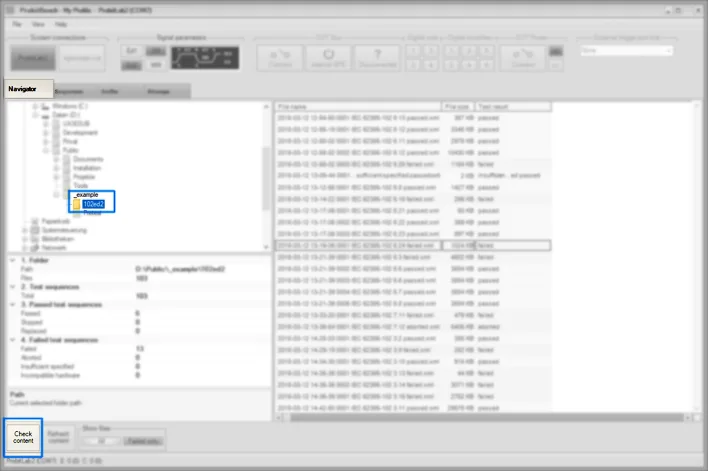
Select the folder with all protocol files of your DUT and click "Check content".
Select DUT
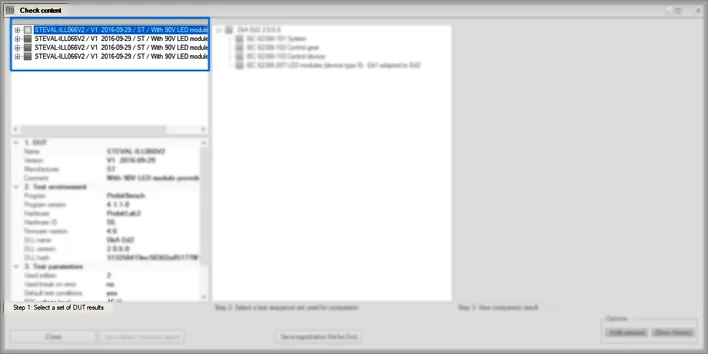
Select your DUT. The files are grouped based on the DUT information.
Tip: If your DUT appears multiple times and the results are spread, it is highly likely that DUT information was changed while testing. Compare the DUT information in the box beneath the list.
Select test scope
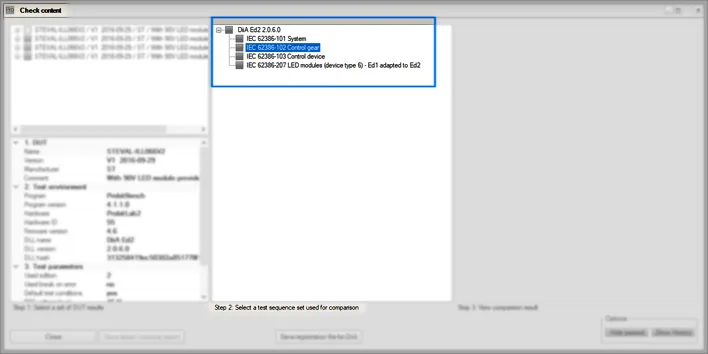
Select the test procedures you want to certify for.
Tip: If "No matching test sequence set found" appears, the tests have been conducted with an older test procedure set (dll file). Please copy the corresponding version into "..\Sequences\Archive" and restart the ProbitBench.
View comparison
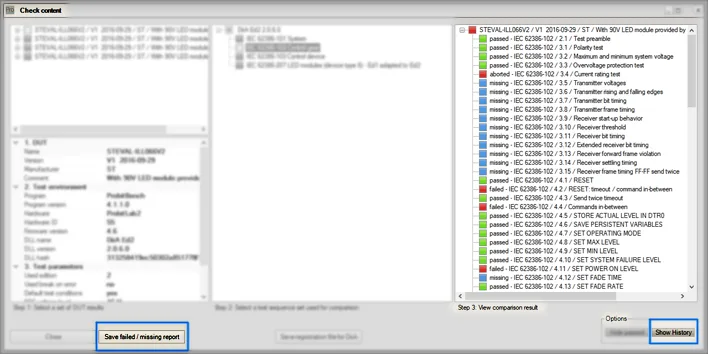
Find in the right column the latest result of all test procedures: passed, failed or missing.
Tip: If you have multiple protocol files for a specific test procedure, you can see all of them with "Show history".
Tip: You can get a quick overview as txt file with "Save failed/missing report".
Save registration file
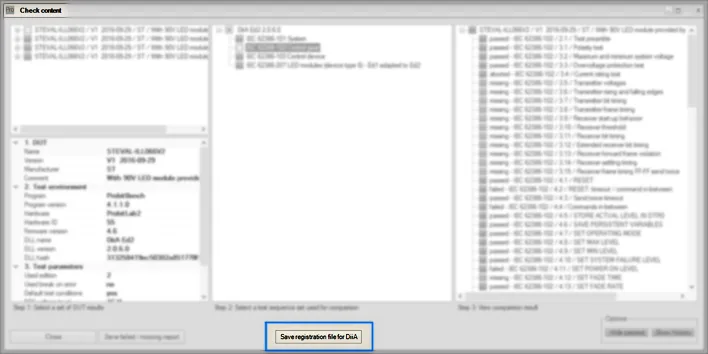
If no test procedure is missing, you can create your registration file.
Tip: If the "Save registration file for DiiA" button is still passive, check its mouse-over for further information.
Upload registration file
For uploading your registration file, please visit the DALI Alliance certification portal.
Downloads
Need help with this step?
Our DALI engineers are happy to help with any ProbitLab or ProbitBench question.