Certification testing
Prepare the tests
Configure DUT settings, manage protocol files and select the right test sequences.
Open the sequence options dialogue
Select "Sequences".
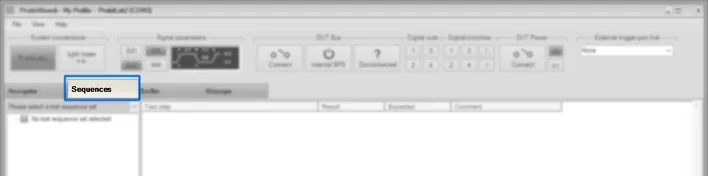
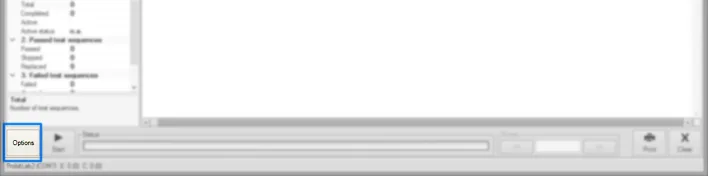
Click "Options".
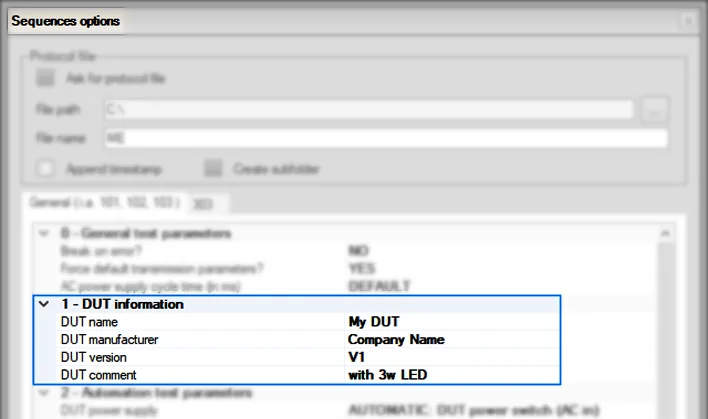
Enter DUT information
Important: The DUT information will be added to all test files. Single files can only be summarised later if they contain the very same DUT information.
Enter the DUT Information Name, Manufacturer, Version and Comment.
Manage protocol files
The ProbitBench generates a single test protocol file for each test procedure. Later, these files can be summarised into one registration file for the DiiA.
Select where to store the test protocol files (File path). File names will be generated automatically.
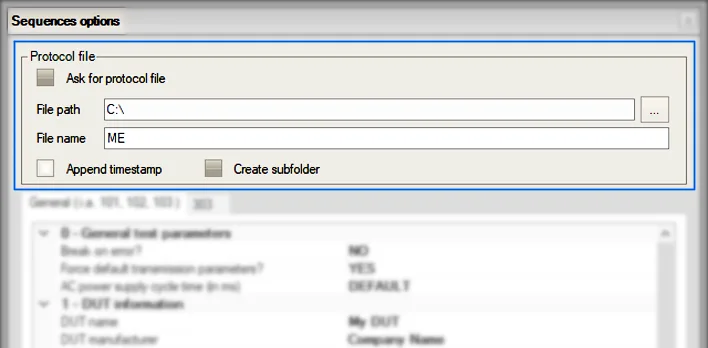
Tip: Type your initials or any other information at the field "file name" and it will be added to all file names.
Tip: Include a timestamp in the file names.
Tip: When "Create Subfolder" is activated, each time a selection of test procedures is started a subfolder will be created for this set of protocol files.
Setup automation
When set to "MANUAL" the test procedures will prompt the user to execute the necessary actions manually.
Alternatively click "…" and activate "Use automatic switching", then select the desired output(s) of ProbitLab2.
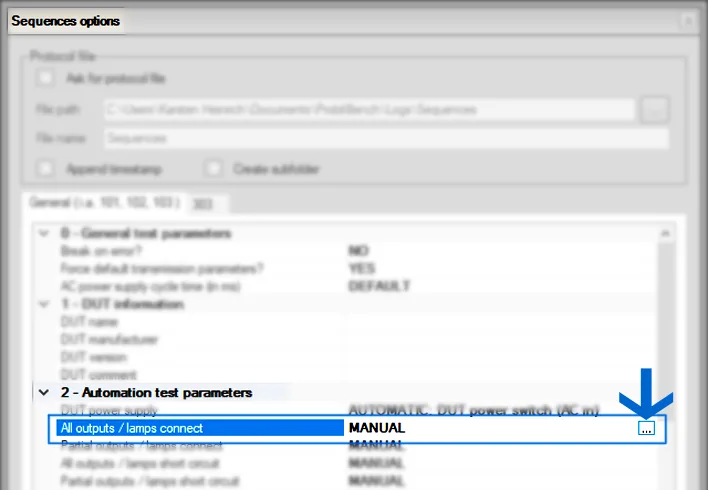
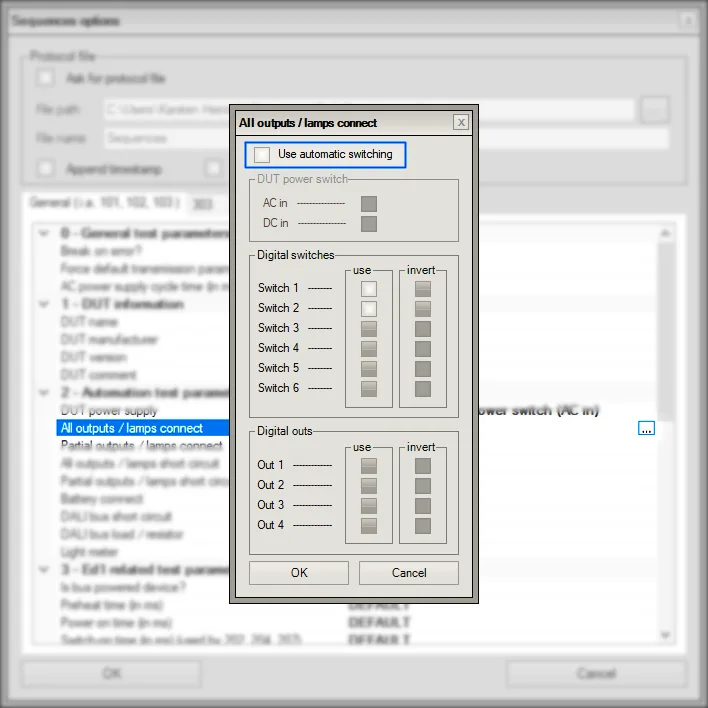
Tip: Refer to the ProbitLab2 reference card for using automated control of "DUT power supply".
Tip: Use "All outputs/lamps connect" and "All outputs/lamps short circuit" for automated testing of LAMP FAILURE detection.
Tip: Refer to the reference card for using automated control of "DALI bus short circuit".
Setup automation Ed1
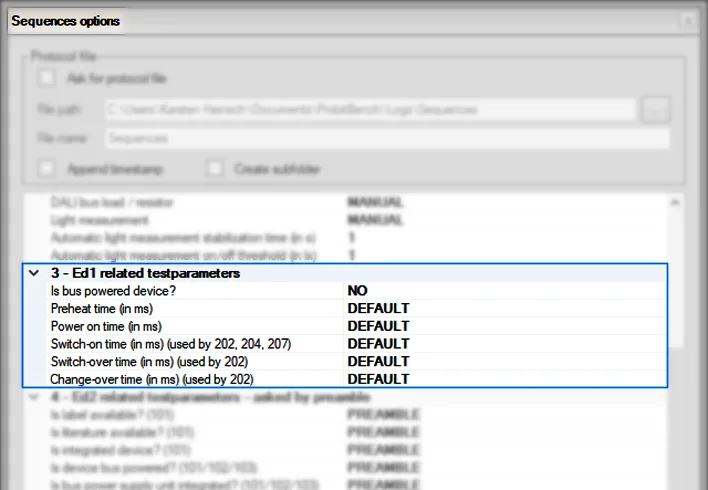
Tip: "Power on time" specifies the time needed before ready for operation.
Tip: "Preheat time" specifies the time needed to ignite the light source.
Setup automation Ed2
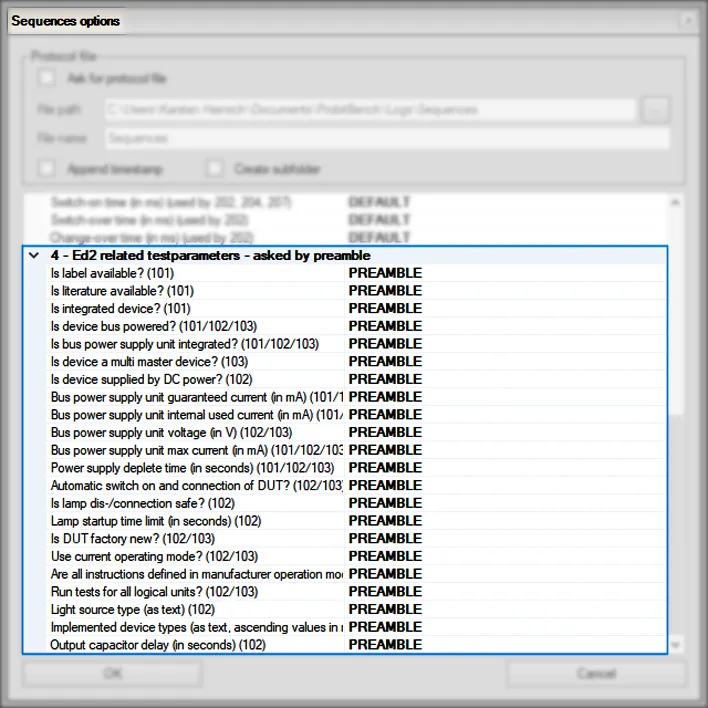
The entries from this list auto-answer the preamble questions.
Need help with this step?
Our DALI engineers are happy to help with any ProbitLab or ProbitBench question.